
Español
1. Access the new parking permit website
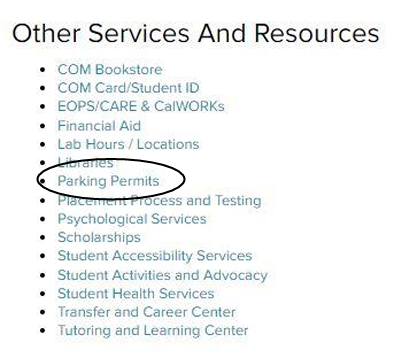
a. Log in to your MyCOM Portal and click “Parking Permits” under Other Services And Resources
2. Select your Pre-Approved parking permit – only the permit that you are eligible for with your M00# will be visible
a. If you are receiving financial aid and are eligible for a discounted parking permit, that will be reflected in the cost of the permit.
b. Daily permits will remain visible as an option for purchase
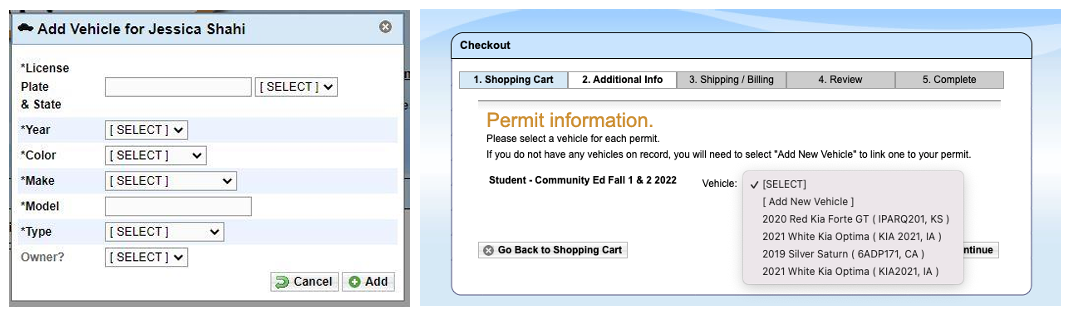
3. Enter your vehicle information
a. There is no limit to how many vehicles can be stored on your account, but only one vehicle can be active at once. If you drive a secondary vehicle to campus, you need to remember to change your account to reflect that vehicle as active.
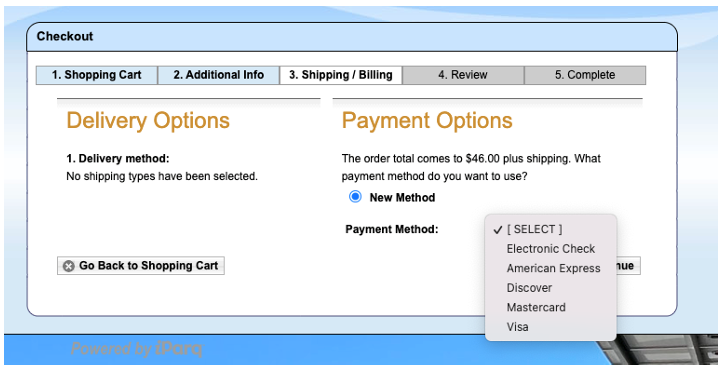
4. Enter your payment information
a. Payment information will not be stored and must be entered for every purchase
b. Online payments can be accepted as:
i. Electronic Check
ii. American Express
iii. Discover
iv. Mastercard
v. Visa
c. In person payments of cash or check can be accepted at the Cashiers office.
i. If you opt to pay in person, please start your order online. The Cashiers office will be able to pull up your account and see the in-process order.
5. Review your order
6. Confirm your order – You will receive a confirmation number.
You will not receive a print out or physical parking permit. Your permit will be virtual and is associated with your vehicles license plate. This virtual permit will be valid for one semester